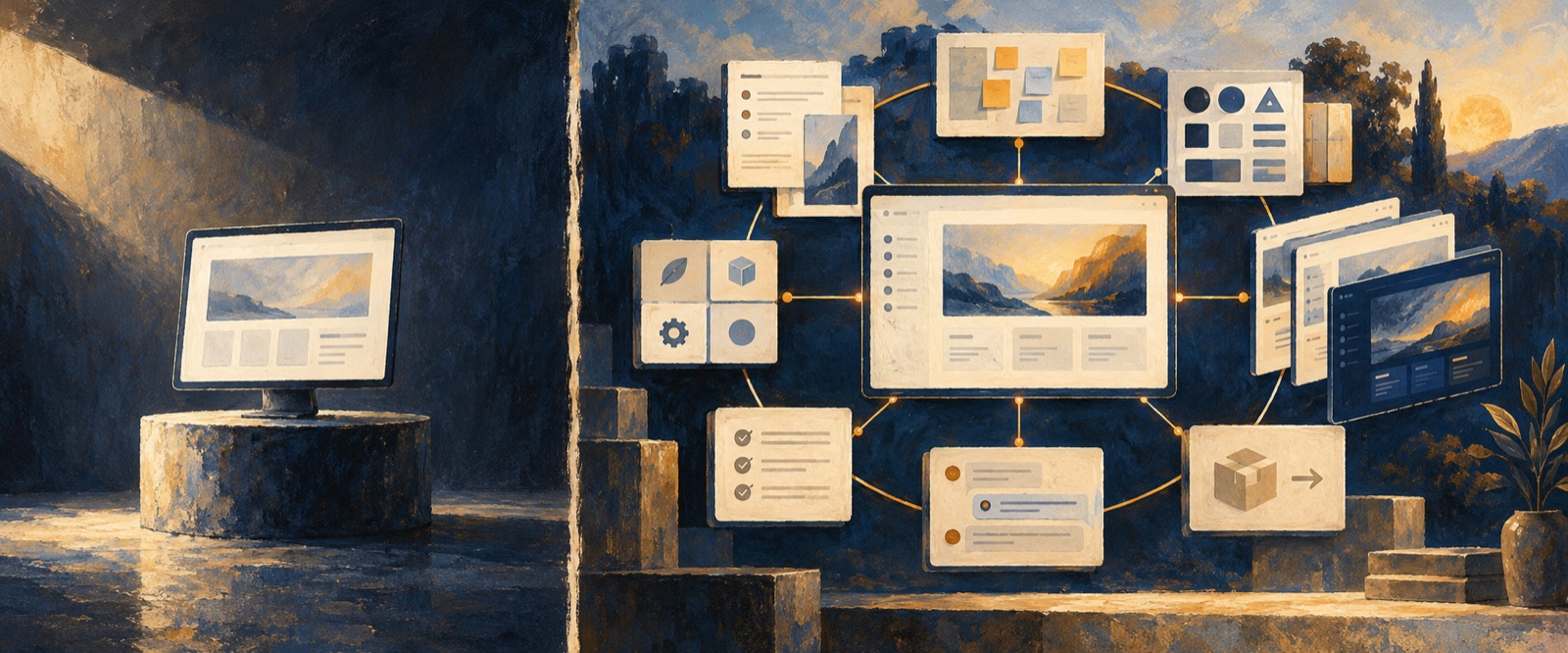
Quick answer: An AI UI generator usually produces a screen from a prompt. OJO extends that workflow with Agent Teams, reusable Skills, shared project context, and an editable Canvas so teams can move from product reasoning to UI, interactive prototypes, revision, and delivery without restarting at each step.
Generating a screen is getting easier. Turning a product idea into something coherent, reviewable, and ready to move forward is still difficult.
AI UI tools now cover much more than one-shot image generation: some create functional prototypes, some explore high-fidelity directions, and others build deployable applications. The more useful question is what each product treats as the center of the workflow. A product is not one screen; it is a chain of decisions about users, scope, structure, interaction, visual quality, revision, and delivery.
OJO is designed for that larger process. It is a Design Agent Team Workspace where you direct an Agent Team, add specialized Skills, develop the work on an editable Canvas, and carry one product goal from an early idea toward a working prototype and handoff.
That is the main reason to choose OJO: it does not stop where UI generation ends.
A UI generator gives you an output. OJO gives you a working design environment.
A one-shot generator treats the prompt as the beginning and the generated screen as the destination. OJO treats the first result as one stage in a continuing product design process.
| What changes | A typical AI UI generator | OJO |
|---|---|---|
| Primary goal | Generate a page from a prompt. | Carry a product goal through reasoning, design, prototyping, revision, and delivery. |
| Collaboration | Rely on one general assistant. | Direct an Agent Team and add focused Skills for the work at hand. |
| Iteration | Accept the generated result or start another generation. | Keep the work editable and make targeted revisions on the Canvas. |
| Project context | Handle each request as a separate task. | Keep goals, references, decisions, prototypes, and feedback connected. |
| Quality and control | Optimize mainly for generation speed. | Balance speed with human judgment, visual quality, and control. |
The difference is not simply that OJO has more features. It is that the product is organized around a different unit of work: not a screen, but a product goal that needs to survive multiple decisions and revisions.
1. Move from a product goal to a deliverable
Product design usually starts before the UI. Someone needs to clarify the audience, define the problem, reduce the scope, organize the information, choose a visual direction, design the core journey, and decide what is ready to test.
OJO keeps those steps connected. You can begin with a rough idea, work through the product direction and requirements, generate an interactive prototype, review it, refine the details, and continue toward code or another delivery format without rebuilding the context at every tool boundary.
This end-to-end continuity matters because a visually polished screen can still represent the wrong product. OJO is designed to help the design reflect the decisions that came before it.
2. Direct an Agent Team instead of prompting one assistant
One general AI assistant is often asked to act as a product manager, researcher, information architect, visual designer, interaction designer, and reviewer at the same time. Those responsibilities affect one another, but they require different kinds of attention.
OJO lets you assemble an Agent Team around the work. You remain responsible for the goal, constraints, references, and final judgment. The agents help explore and execute different parts of the process while sharing the same project context.
The point is not to remove the human from design. It is to give one person a more capable team to direct.
3. Add reusable Skills when the work needs them
Design requirements change as a project develops. Early work may need product reasoning and information architecture. A later revision may need stronger typography, responsive layout, motion, visual review, or performance thinking.
OJO uses Skills to add focused design methods and constraints to the current workflow. Instead of forcing every project through one fixed generation pattern, you can bring in the capabilities that match the stage and remove the ones that do not.
Skills also make useful design knowledge reusable. A working method, team convention, or quality bar does not need to remain trapped in one long prompt. It can become part of how future work is approached.
4. Keep iterating on an editable Canvas
The first generated result is rarely the final product. Real design work involves inspecting hierarchy, changing copy, moving elements, comparing directions, checking responsive states, and giving feedback on specific parts of the interface.
OJO combines conversation with an editable Canvas so the work can keep moving. You can review what the Agent Team produced, point to the exact element that needs attention, edit the result, and continue the iteration without treating every revision as a new project.
This makes the Canvas more than a preview surface. It becomes the shared place where intent, output, feedback, and revision meet.
5. Use AI without giving up taste and control
Fast generation creates more options. It does not automatically create better judgment.
OJO is built around the idea that the user should continue to direct the product and its visual quality. You decide what the work is for, which constraints matter, what should be preserved, and what is good enough to move forward. The Agent Team, Skills, Canvas, and project context support those decisions rather than replacing them.
That balance is important for teams that want the speed of AI without reducing design to a sequence of random regenerations.
What does this look like in practice?
Imagine starting with a one-sentence product idea. In OJO, the workflow can continue through a connected sequence:
- Clarify the target user, problem, outcome, and project constraints.
- Reduce the idea to a focused first version and core user journey.
- Assemble an Agent Team and add the Skills needed for the current stage.
- Turn the approved direction into a structured, interactive prototype.
- Review the information, hierarchy, visuals, states, and interactions on the Canvas.
- Give targeted feedback, refine the result, and prepare it for sharing or handoff.
The Designing With AI Agents guide shows how a product idea can move toward an interactive prototype. The How to Use OJO guide explains the workspace itself step by step.
Who should choose OJO?
OJO is for people who need to make a product decision, not only produce a quick image. That includes founders shaping an early idea, product managers turning requirements into something testable, designers exploring and refining complete experiences, and builders preparing a prototype for implementation.
If you only need a disposable visual draft, a simple UI generator may be enough. If you need the idea, design decisions, working prototype, revision process, and delivery path to stay connected, OJO is built for that job.
For the basic product definition, read What is OJO?. The distinction is simple: OJO is not just where a screen is generated. It is where a product idea is worked through.
Which AI UI design tool should you choose?
For buyers comparing AI UI design tools, start with the work that must happen after the first screen appears. A strong tool should keep layouts editable, connect responsive and interactive states, accept targeted feedback, and preserve the product rationale behind each revision.
If you only need visual inspiration, a fast generator may be the right choice. If you need a modern app or website design to survive review, iteration, prototyping, and handoff, evaluate the complete AI design workflow—not just image quality or generation speed.
OJO vs. Figma Make, Google Stitch, v0, and Lovable: which tool fits the job?
There is no universal best AI UI design tool. The useful comparison is the job you need the product to carry after the first prompt.
Comparison reviewed against public product documentation on October 22, 2026.
| The decision you need to make | Strong match | Why |
|---|---|---|
| Turn existing Figma designs into a functional prototype or web app. | Figma Make | It starts naturally from Figma designs and components, then supports visual editing, code inspection, collaboration, and publishing. |
| Explore several high-fidelity UI directions on an AI-native canvas. | Google Stitch | It emphasizes visual exploration, design-agent critique, interactive flows, and export into developer tools. |
| Move quickly from a prompt or prototype into a Next.js-oriented full-stack build. | v0 | Its center of gravity is working code, backend integrations, and deployment. |
| Launch a hosted full-stack app through a conversational, low-setup workflow. | Lovable | It combines UI, backend, authentication, data, integrations, and publishing around app delivery. |
| Keep product reasoning, specialist design methods, editable UI, prototype review, and handoff connected. | OJO | Its unit of work is a product goal directed through Agent Teams and reusable Skills, with human judgment at explicit review points. |
This makes OJO a relevant alternative when a search for an AI UI generator is really a search for an AI product-design workflow. It is not positioned as a replacement for Figma’s broader design ecosystem or for a code-first application builder. Its differentiation is the continuity between product intent, specialist design work, the editable Canvas, review, and the resulting prototype.
Frequently asked questions about AI UI generators
What should teams look for in an AI UI generator?
Evaluate whether it supports real product context, editable output, responsive states, reusable components, interaction, targeted revision, collaboration, and implementation handoff. Generation speed alone does not show whether the result can support product work.
Is an AI UI generator the same as an AI UX design tool?
Not necessarily. UI generation focuses on interface output. UX design also includes user needs, task flows, information architecture, content, states, accessibility, and validation. A credible AI UX workflow must address those decisions.
When should a team choose OJO instead of a one-shot UI generator?
Choose OJO when the product goal, requirements, UI, interactive prototype, feedback, and delivery path need to stay connected. A one-shot generator may be enough for a disposable visual reference with no continued workflow.
Is OJO the best AI for UI design?
There is no single best tool for every task. OJO is a strong fit when teams need product context, editable UI, connected prototypes, specialist Skills, review, and delivery in one workspace. A simpler generator may be more efficient when the only goal is a quick visual reference.
Is OJO a Figma Make, Google Stitch, v0, or Lovable alternative?
OJO overlaps with all four, but the best choice depends on the job. It is most relevant as an alternative when the team needs product reasoning, role-based Agent Teams, selectable design Skills, and reviewable prototypes to share one context. Figma Make and Stitch are strong design-centered options, while v0 and Lovable are often stronger when the immediate goal is working application code and deployment.
Move beyond a disposable first screen
OJO is designed for work that needs to continue after initial UI generation: clarifying the product, connecting states, reviewing details, refining the prototype, and preparing a delivery path. This can reduce context loss when the goal is a usable product direction rather than a single visual. Open OJO and develop your idea with an Agent Team on the Canvas.
OJO
Turn your next idea into a working product
Build research-backed UI, landing pages, and interactive prototypes with an OJO Agent Team.